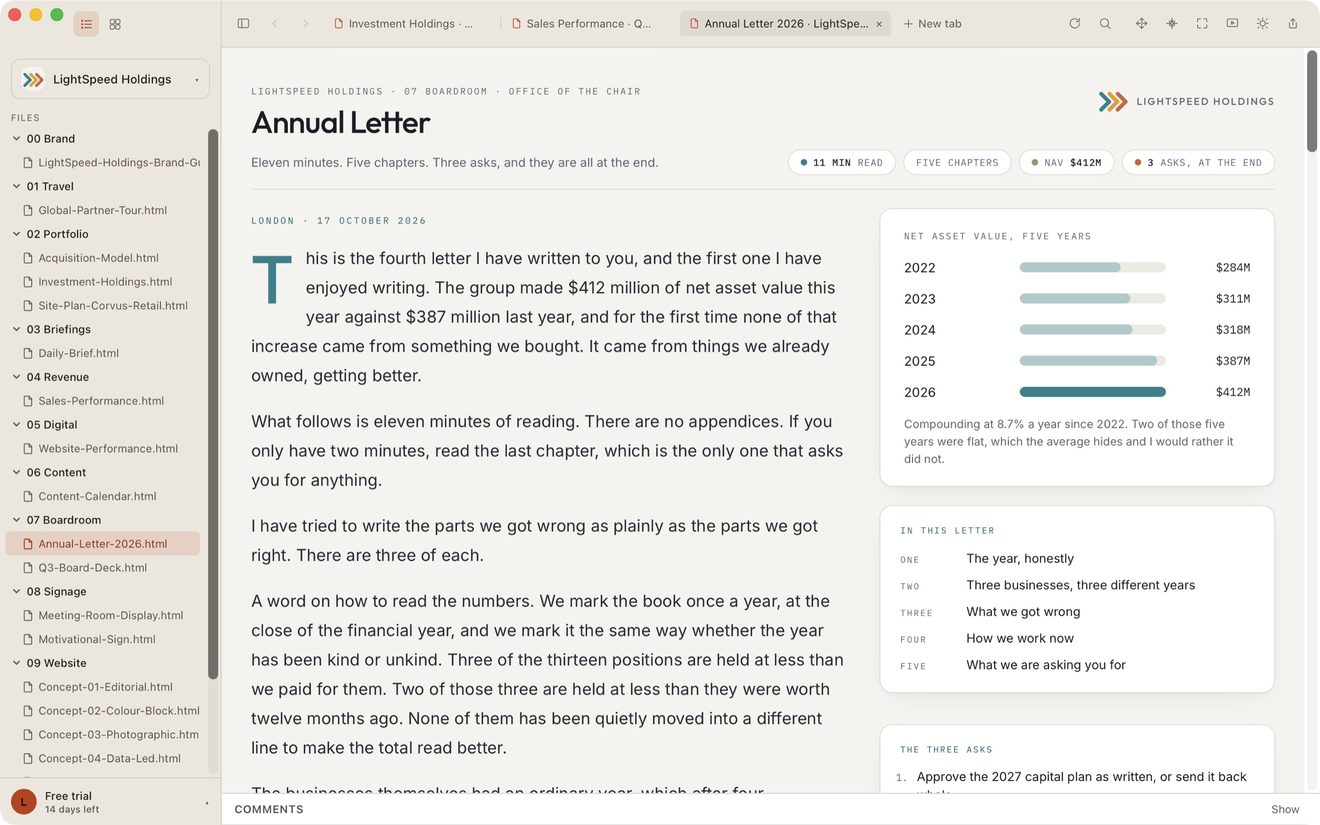
The tab strip runs across the top of the window, beside the Back and Forward buttons.
To open a page in a new tab, ⌘-click it in the sidebar or the gallery. The new tab opens and shows the page straight away.
You can also drag a page from the sidebar or the gallery onto the tab strip. It opens where you drop it, and the strip parts to show you where before you let go. Drop it on the page area instead and it opens as a new tab at the end.
Other ways to open a tab
Every page's ⋯ menu has Open in New Tab. Click + New tab at the right end of the strip for an empty tab, then click a page in the sidebar to open it there.
A page already open in a tab is never opened twice. Asking for it again brings you to the tab that has it.
Closing and reordering
Click the × on a tab to close it. Closing the last one leaves an empty tab rather than closing the window, so the + New tab button always has somewhere to sit.
Drag a tab sideways to reorder the strip. Explode lays your windows out in tab order, so arranging the strip first is how you decide which page lands on which screen. See Explode and Implode.
Pulling a tab out
Drag a tab down out of the strip and it tears off into a window of its own, where you dropped it. Drag it back into a strip to put it away again.
Drop it on another lite.computer window and it joins that window's strip at the point you let go. The strip parts to show you where it will land before you release.
Your agent can do this too
An agent can open a page in a new tab, list every tab in every window, and close the ones it opened. See Every command your AI has.
Shortcuts
⌘-click a page in the sidebar or a card in the gallery to open it in a new tab. In the sidebar, ⌘Return does the same for the highlighted page. See Keyboard shortcuts.
Still stuck? Write to support@lite.computer.