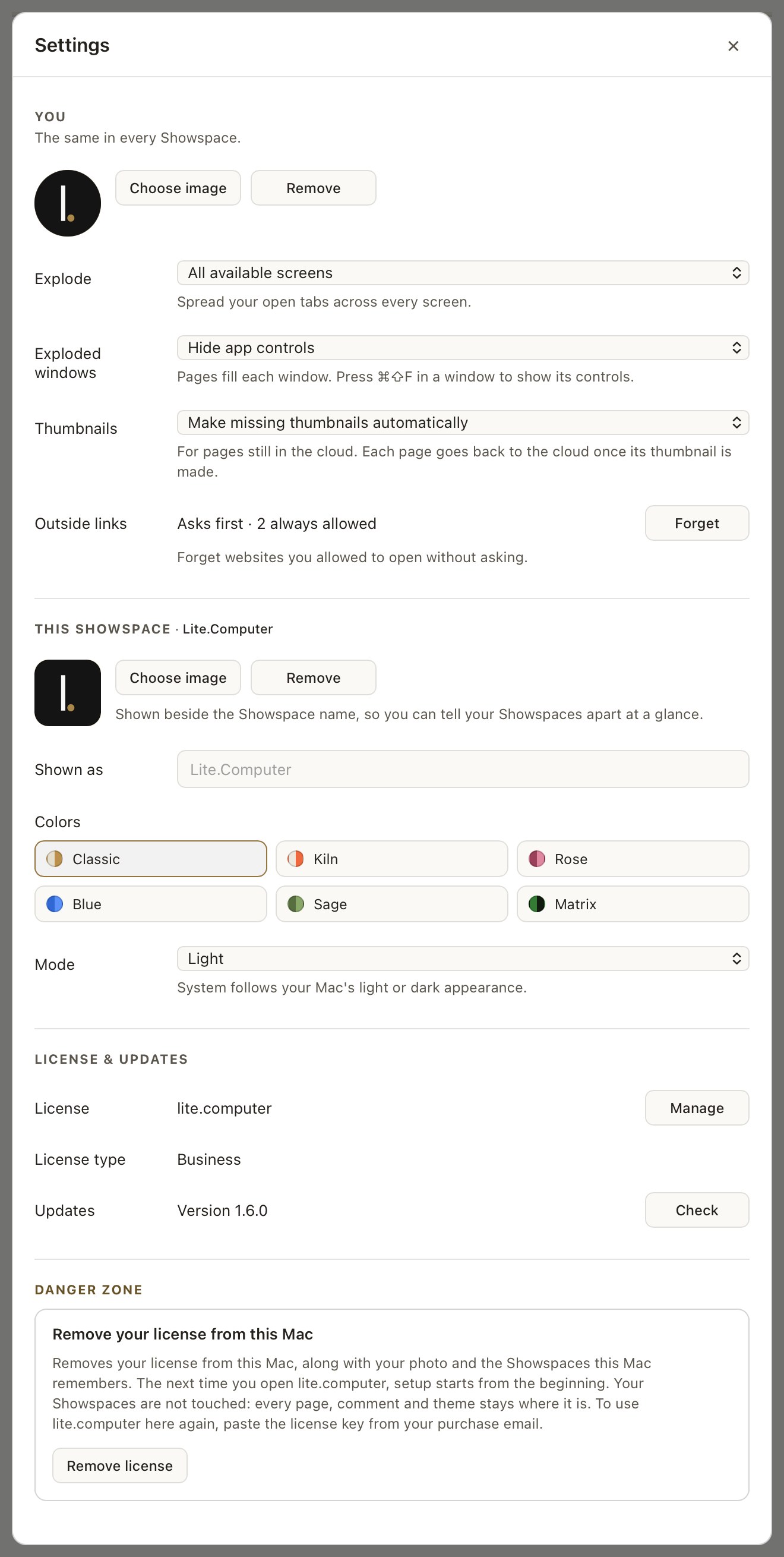
Open Settings from the sidebar: click the account button at the bottom, then Settings…. The sheet is in four parts, and the headings say which is which.
You
Photo. Choose image picks a picture for the disc beside your name. Without one you get your initials. The picture is kept on this Mac and is never written into a Showspace, so it does not travel with your folder or reach anyone you share it with. Remove takes it off.
Engraving. The name on your license, shown here and in the sidebar. It is read-only. This row is absent on a trial copy, which has no license to read a name from, and on a Business license, whose company name shows in the sidebar instead. See Your name on your license.
Explode. Which screens Explode uses. All available screens reads your screens left to right, like one wide page, and gives each an even share of your tabs. This screen only keeps every window on the screen lite.computer is on, so your other screens stay free.
Exploded windows. Hide app controls lets each page fill its window, for a wall of pages. Show app controls keeps the tabs and buttons in every window, for working side by side. Either way, ⌘⇧F in a window shows or hides its controls.
Thumbnails. Make missing thumbnails automatically draws a thumbnail for a page still in the cloud when no Mac has drawn one after a few minutes. The page downloads, its thumbnail is drawn, and the page goes back to the cloud, so only the small thumbnail stays on your disk. Only when I click Refresh downloads nothing by itself. See Gallery View.
Outside links. A page can link to a website or an email address. lite.computer asks before it opens one, and shows you where the link goes. Tick Always allow followed by the site’s name (or Always allow email links) and it opens straight away from then on. Forget clears that list, so every site asks again.
This Showspace
The heading names the Showspace these apply to. Switch Showspace and this section changes with it.
Shown as. What the app calls this Showspace, up to 60 characters. It is a label, not a rename: the folder on your disk is untouched, and this is the name that appears in the switcher and to your agent when it asks which Showspaces exist.
Mark. A small square image shown beside the name, so you can tell your Showspaces apart at a glance in the switcher. Choose image sets it, Remove clears it back to the initials.
Colors. Six color families: Classic, Kiln, Rose, Blue, Sage and Matrix. Each has a day and a night version.
Mode. System follows your Mac's light or dark appearance. Light and Dark keep one version. See Themes and night mode.
License & Updates
License. Shows whether the app is running on your license or your trial. Manage opens the sheet where a key is pasted or replaced. See Entering your key.
Updates. Shows the version you are running. When a new version is out, an UPDATE button appears beside your name at the bottom of the sidebar, and this row says which version is available and what it changes. Click UPDATE (or Update here) and the new version downloads while you keep working; the button fills as it goes. When it turns to RESTART, click it: lite.computer closes and opens again on the new version, and your AI apps reconnect on their own. Nothing downloads and nothing restarts until you click. Check asks right away instead of waiting for the daily check.
Danger Zone
Remove license. Removes your license from this Mac, along with your photo and the Showspaces this Mac remembers. The next time you open lite.computer, setup starts from the beginning. Your Showspaces are not touched: every page, comment and theme stays where it is. The button asks you to confirm with a second click. To use lite.computer here again, paste the license key from your purchase email. See Removing lite.computer.
Still stuck? Write to support@lite.computer.